
An AI coding tool can save ten minutes on boilerplate and then cost an hour when its agent edits the wrong files. That is why the debate of Cursor vs GitHub Copilot can’t be settled by asking which one has smarter autocomplete. Both can now search repositories, edit several files, run commands, and work through larger coding tasks.
The real difference is where each tool fits. Cursor rebuilds the editor around AI. GitHub Copilot brings AI into the IDE, terminal and GitHub workflow you already use.
In this Cursor vs GitHub Copilot comparison, we use findings from our published reviews, current product documentation and official benchmarks to explain which tool suits different developers and teams.
Cursor is better for developers who want autocomplete, repository search, multi-file editing and agents inside one AI-first editor. GitHub Copilot is better if you want to keep your current IDE, pay less and use AI across coding, GitHub issues, pull requests and code review.
Our Cursor review scored it 8.4 out of 10. Our GitHub Copilot review scored Copilot 8.6. Those scores cover ease of use, features, response quality, speed and value, not just agent performance.
| Area | Cursor | GitHub Copilot |
|---|---|---|
| Product type | AI-first code editor | AI assistant across IDEs, terminal and GitHub |
| Best for | Frequent multi-file editing and agent work | Everyday coding across an existing setup |
| Editor support | Cursor editor | VS Code, Visual Studio, JetBrains, Eclipse and Xcode |
| Autocomplete | Cursor Tab and next-edit predictions | Inline completions and next-edit suggestions |
| Agents | Local and cloud agents | IDE, CLI, cloud and third-party agents |
| Context | Repository indexing, rules and selected files | Workspace context, instructions and GitHub data |
| GitHub workflow | Connected through integrations | Native issues, pull requests and code review |
| Free plan | Limited chat and agent use | 2,000 completions plus limited AI use |
| Practical paid starting point | Premium: $30/month | Pro: $10/month |
| Main limitation | Full model choice and cloud tools cost more | Advanced work consumes AI Credits |
The old description of Cursor as an editor and Copilot as autocomplete is no longer useful. Both now have agents. Cursor still offers the tighter editing environment, while Copilot covers more of the software delivery process.
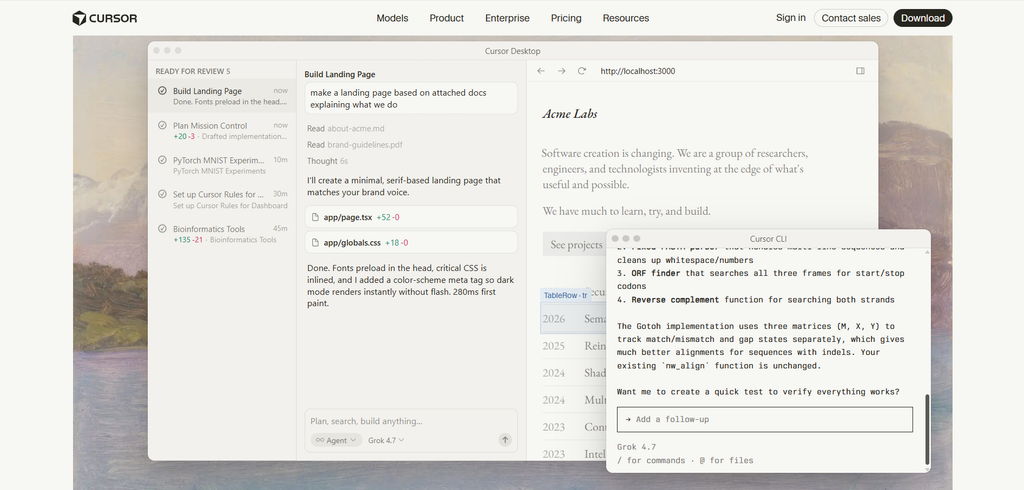
Cursor is a complete code editor. Its interface feels familiar to VS Code users and can import many settings, extensions and shortcuts. You still need to move your work into another application and make it your main coding workspace.
That control lets Cursor connect autocomplete, repository search, terminal access, rules and agents closely. An agent can find a function, edit related files, run tests and show the resulting diff without leaving the same environment.
The switch is less attractive for developers committed to JetBrains, Visual Studio or Xcode. Even a familiar replacement can disrupt debugging setups, extensions and keyboard habits.
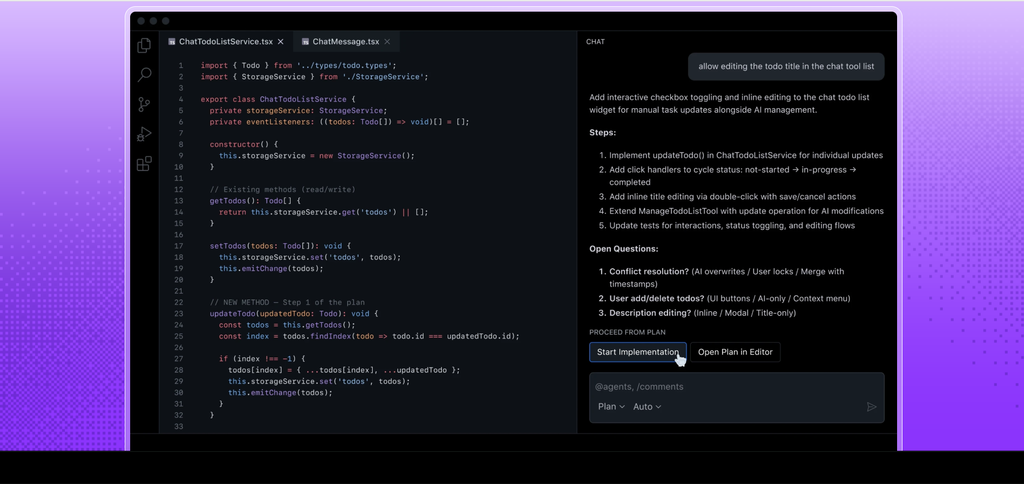
GitHub Copilot works inside supported IDEs, the command line and GitHub. Teams can add it without requiring every developer to change editors.
Its experience is not identical everywhere. VS Code gets the deepest feature set, while other IDEs may provide a smaller mix of autocomplete, chat and agents. Even so, Copilot creates less disruption when a team already uses several editors.
If you want an agent that works with your existing terminal and editor, our Claude Code review covers repository work, permissions and the supervision it still needs.
Yes, if you are willing to use Cursor as your main editor. It can replace Copilot for autocomplete, code questions, multi-file changes and agent tasks. It does not replace Copilot’s native reach across GitHub issues, pull requests, code review and multiple IDEs.
Autocomplete is less dramatic than a cloud agent, but developers use it more often.
Cursor Tab can suggest lines, blocks and the next related change. During a refactor, it may notice that renaming a prop or adding validation requires another edit nearby.
Our Cursor review found it most useful for boilerplate, tests, documentation and small refactors. These jobs have visible patterns and suggestions that are easy to check. It can still repeat a locally correct pattern that breaks a rule elsewhere in the project.
Autocomplete remains Copilot’s strongest everyday feature. It reads the active file and nearby context, then predicts the next line or block inside the developer’s current editor.
It is useful for tests, standard API routes, data models, regular expressions and repetitive code. Paid plans include unlimited completions and next-edit suggestions; these do not consume AI Credits.
Cursor has the edge when suggestions must follow a change across related code. Copilot offers better value for dependable completion inside an existing IDE.
For another editor combining autocomplete with local and cloud agents, read our Devin Desktop review. It also explains the product’s move from Codeium and Windsurf, and the limits of its usage quotas.
Agents can search files, edit code, run commands and check tests. They can also make a larger mess than autocomplete, so workflow and review controls matter.
Cursor Agent can search a repository, modify several files, run terminal commands and inspect errors. Cloud agents can work remotely on separate branches, while parallel agents can divide independent tasks.
The main advantage is continuity: planning, editing, testing and diff review happen in the same workspace. The weakness is overreach. Broad prompts can lead to unnecessary rewrites or changes outside the intended area. Clear file boundaries, constraints and test commands make a major difference.
Copilot provides agent mode inside supported IDEs, an agentic CLI and a cloud coding agent that can take a GitHub issue and return its work as a pull request. Paid plans also include access to third-party agents such as Claude and Codex, although their available features and billing depend on GitHub’s implementation.
Cursor is better when the job begins and ends inside the editor. Copilot is better when it begins with an issue and should move through the normal GitHub review process.
If background repository tasks are your priority, our Codex review examines isolated cloud work, parallel tasks and the review needed before merging.
Cursor’s Composer 2 technical report publishes these results:
| Benchmark | Score | What It Measures |
|---|---|---|
| CursorBench | 61.3 | Ambiguous tasks based on real Cursor sessions |
| Terminal-Bench 2.0 | 61.7% | Multi-step terminal work |
| SWE-bench Multilingual | 73.7% | Repository issues across several languages |
The official SWE-bench repository explains how agents receive real open-source issues and must create patches that pass tests. CursorBench focuses on unclear, multi-file requests, but Cursor created the benchmark and controls its setup. Treat it as useful first-party evidence, not a neutral contest.
GitHub’s Copilot evaluation documentation says it uses public benchmarks such as SWE-bench and internal evaluation suites. Tasks are run several times because agent results vary between attempts.
There is no fair official Cursor vs Copilot score. Cursor reports a particular model inside its own agent harness, while Copilot can run several models through GitHub’s tools. Different prompts, permissions and context systems can change the result. The evidence confirms that both can complete repository tasks; it does not prove a universal winner.
Neither tool truly holds an entire repository in memory. Both retrieve the files and instructions they consider relevant. If the retrieval misses a dependency or business rule, the resulting code may look correct while breaking the wider system.
Cursor indexes the repository and lets developers point agents toward particular files or folders. Project Rules in .cursor/rules, AGENTS.md files and skills can define naming conventions, test commands, folder boundaries and prohibited changes.
This gives developers strong control inside the editor. It does not reveal undocumented decisions, hidden customer dependencies or the reason an older design was kept.
It uses active files, open tabs, workspace search, referenced files and custom instructions. Copilot Spaces can combine code with documentation and other shared material. Its position inside GitHub also lets agents use issue descriptions, repositories and pull-request discussions.
Cursor is stronger when the missing context is spread across code files. Copilot has the advantage when it also lives in issues, pull requests and team documentation.
Teams already using Google Cloud can also read our Gemini Code Assist review for its approach to project context and enterprise repository customization.
The difference is not how many logos each company can place on an integrations page. It is where the tool fits into your development process.
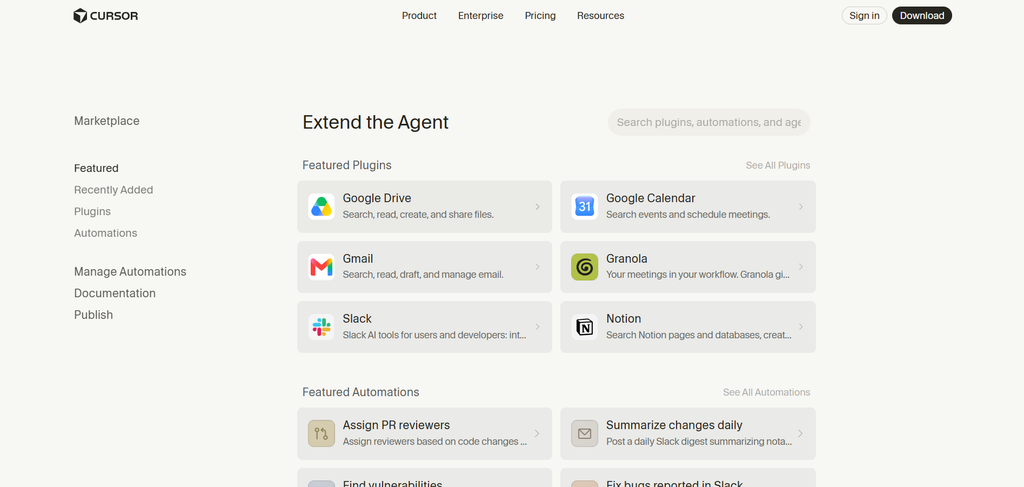
Cursor works best when it becomes your main editor. It can also connect with the tools around that editor.
Its current integrations include:
The GitHub app connects repositories to Cursor’s cloud agents and Bugbot code review. Slack and Linear can also start cloud-agent jobs without opening the editor. Cursor Automations can respond to events from GitHub, GitLab, Slack, Linear and webhooks.
This is broader than the old description of Cursor as “VS Code with AI.” However, the editor remains the centre of the experience. The integrations mostly bring work into Cursor or send an agent out to complete it.
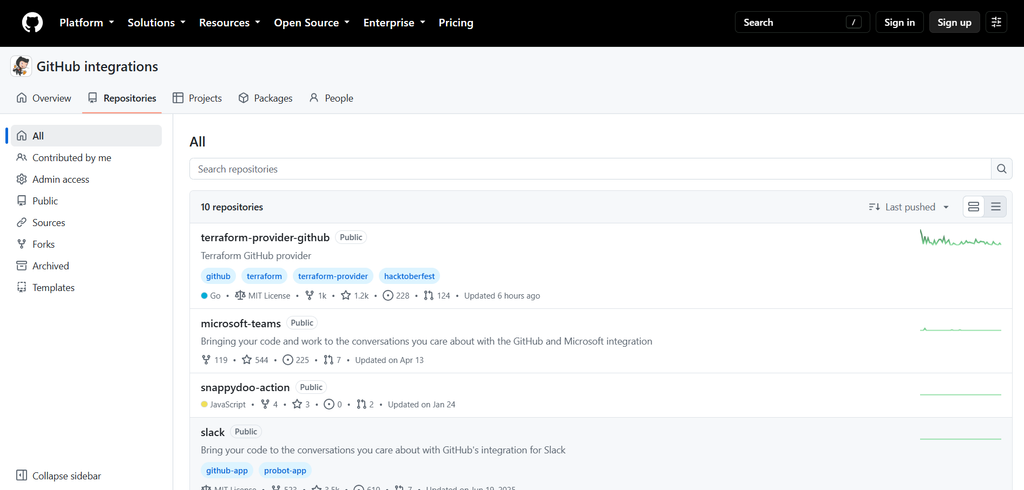
GitHub Copilot supports a wider range of development surfaces:
Feature support is not identical in every editor. VS Code receives the deepest Copilot experience, while other IDEs may offer a smaller mix of autocomplete, chat and agent features.
Copilot’s strongest integration is still GitHub itself. A developer can assign an issue to an agent, receive a pull request, request a code review and ask for changes in the PR comments. Cursor can connect to GitHub, but Copilot lives inside the platform where many teams already manage that work.
Choose Cursor when you want one tightly connected coding workspace. Choose Copilot when your development day moves between an IDE, terminal, issues, pull requests and GitHub reviews.
Prices and allowances below were checked in October 2026.
| Plan Level | Cursor | GitHub Copilot |
|---|---|---|
| Free | Hobby: limited Agent requests and Composer access | Limited completions and chat |
| Standard individual | Pro: $20/month or $16/month billed annually | Pro: $10/month, including $15 in AI Credits |
| Higher-use individual | Pro+: $60/month or $48/month billed annually | Pro+: $39/month, including $70 in AI Credits |
| Heavy-use individual | Ultra: $200/month or $160/month billed annually | Max: $100/month, including $200 in AI Credits |
| Team | Teams Standard: from $40/user/month | Business: $19/seat/month |
| Enterprise | Custom pricing | $39/seat/month |
Cursor’s $8 Plus plan only includes Grok models. Premium is the practical starting point for cloud agents, automations, Bugbot and outside models. Third-party models are billed separately at API list prices.
Copilot Pro provides unlimited completions and next-edit suggestions. Chat, CLI, code review and agent work consume AI Credits. One credit equals $0.01, and longer sessions on expensive models use more.
In a basic Cursor vs Copilot pricing comparison, Copilot Pro offers better value for autocomplete and occasional agent work. Cursor Premium earns its higher price only when its editor and agents replace enough manual work to matter. Heavy users should monitor actual agent usage on either platform.
If you prefer choosing and paying your model provider directly, our Cline review covers its open-source agent, API-funded usage and optional subscription. It is an agent alternative rather than an inline autocomplete replacement.
Copilot Pro is the easier starting point. It costs $10, works in several popular IDEs and includes unlimited completions. Cursor suits solo developers who want AI to shape the full editing experience and are willing to pay more for the broader workflow.
Cursor gives teams shared rules, skills, plugins, usage controls and one standard AI-first workspace. Copilot Business and Enterprise provide central licence management, organization policies, content exclusions and shared credit pools.
Neither automatically wins for teams. Cursor makes sense when developers can standardize on one editor. Copilot is easier to roll out when they use different IDEs or already manage work through GitHub.
For organizations that need self-hosted or air-gapped deployment, our Tabnine review explains the deployment controls and the capability and cost trade-offs.
| Your Main Use | Our Pick | Why |
|---|---|---|
| Autocomplete and small edits | GitHub Copilot | Lower price and unlimited paid completions |
| AI-first editing | Cursor | Editing, search and agents share one workspace |
| Multi-file implementation | Cursor | Tighter repository workflow inside the editor |
| Keeping your current IDE | GitHub Copilot | Wider editor support |
| Issues, pull requests and reviews | GitHub Copilot | Native GitHub workflow |
| One editor across a team | Cursor | Shared rules and a consistent setup |
| Mixed IDEs across a team | GitHub Copilot | Easier adoption and administration |
Choose Cursor if you want the editor itself built around AI and regularly delegate multi-file changes. Choose Copilot if you want strong assistance inside your current tools, tighter GitHub integration and the safer paid starting price.
Our Cursor vs GitHub Copilot verdict is not a draw. Cursor wins the deeper editing workflow. Copilot wins on reach, cost and GitHub integration. The right winner depends on where you want the agent to work.
Before paying, try each free plan on one real repository. Complete a normal coding session, one multi-file change and one pull-request task. Keep the tool that removes work without making the final review harder.
Want to check the details side by side? Add Cursor and GitHub Copilot to the AI Suggestions comparison tool to compare their scores, features, pricing and review findings.